Business settings
Your business details, privacy choices, notifications and sign-in.
Who can do this: owners and admins change General and Data and privacy. Everyone manages their own Account and Notifications.
General
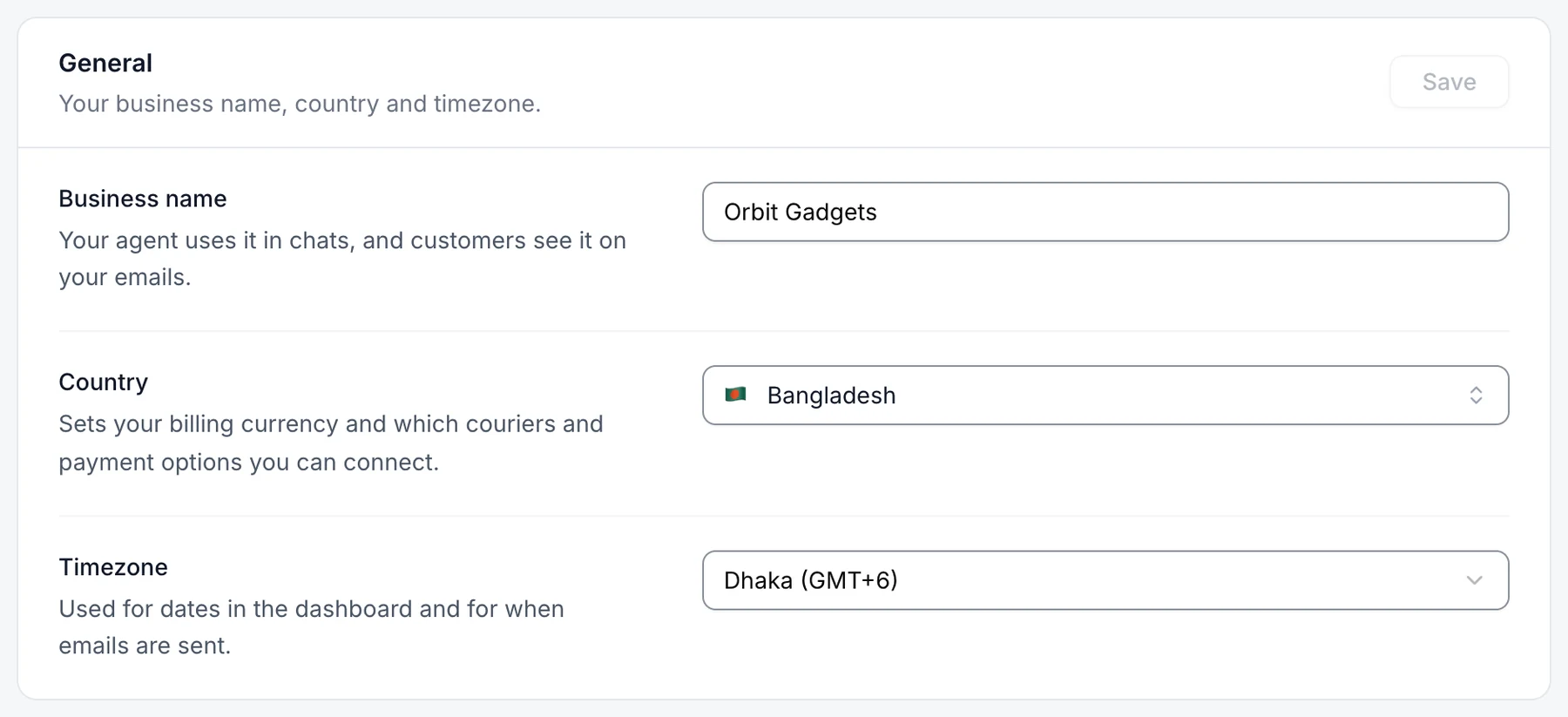
Go to Settings → General to change your Business name, Country, Industry and Timezone, then select Save.
Your logo and brand colour are on the Website widget page, Appearance tab.
Data and privacy
Under Settings → Data and privacy, choose whether your agent remembers returning visitors and whether to share anonymised usage data. To delete your account, email [email protected] from the address on the account.
Notifications
Under Settings → Notifications, choose desktop alerts on this browser and the emails you get. Changes save straight away.
Account
Under Settings → Account:
- Photo: select Upload photo to add one, or Remove to go back to your initials. Only you can change your photo. If you signed up with Google, your Google photo is used to start with.
- Name: change it and select Save. It's how teammates see you on assignments and notes.
- Email and Password: select Change email or Change password. Forgotten your password? Select Forgotten it?
- Other devices: select Sign out other devices if you lost a phone or used a shared computer. You stay signed in on this browser.
Two-step sign-in
With two-step sign-in on, we email you a 6-digit code each time you sign in, after your password or Google. Someone who has only your password can't get in.
- Next to Two-step sign-in, select Turn on.
- Enter the code we email you and select Turn on.
Turning it on or off signs you out on your other devices, and we email you to confirm. The code also works when you open Kothok from Shopify or WordPress. If the email doesn't arrive, check your spam folder, or select Send a new code after a minute.