Conversations
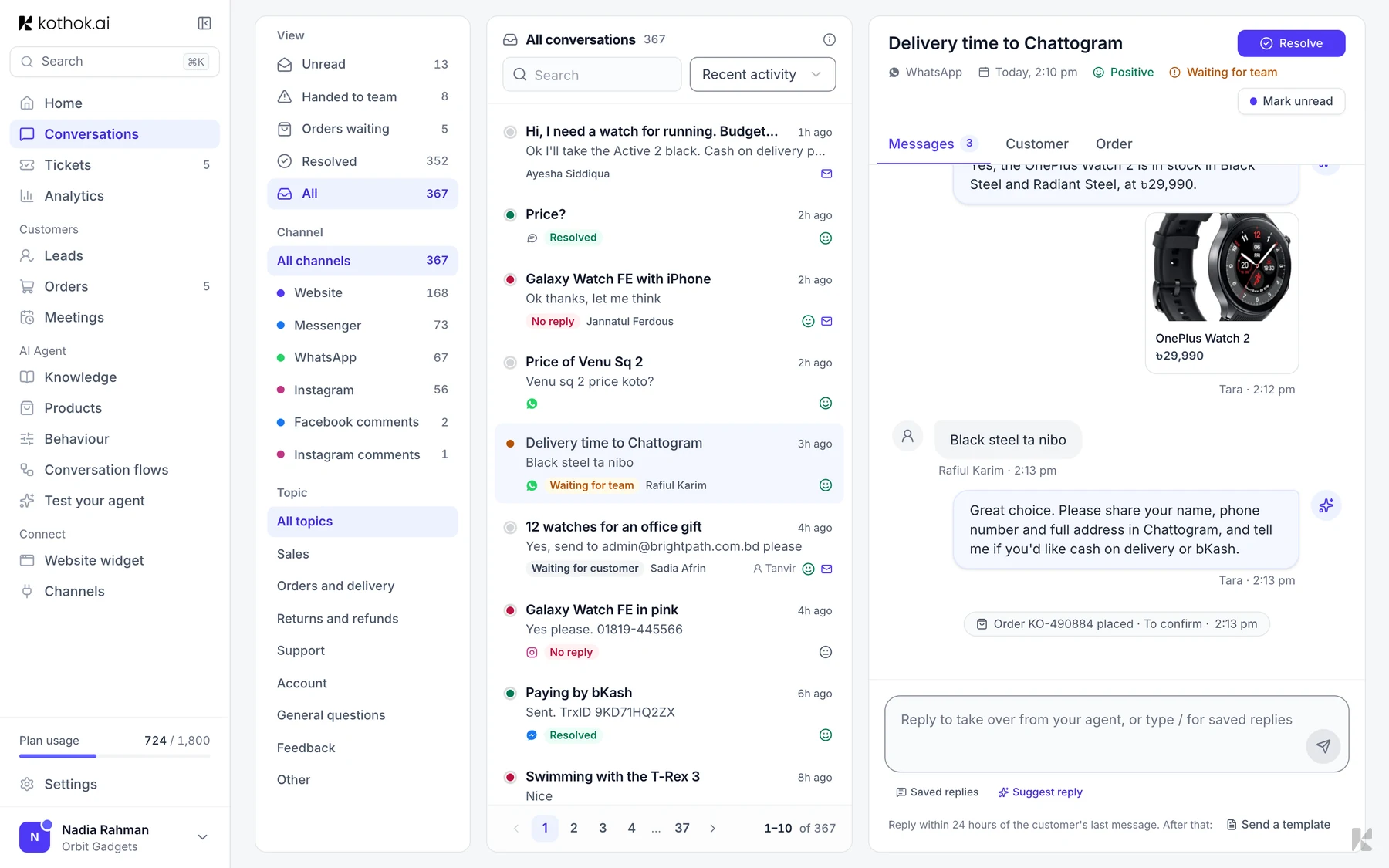
Conversations holds every chat your agent has had, on your website and every connected channel.
Who can do this: everyone on your team.
Find a chat
In the sidebar, select Conversations. Use the filters on the left, or search the messages. A red dot means your agent couldn't answer, and amber means the chat is waiting for your team.
Read a chat
Select a chat to open it. The Messages tab starts with an AI Summary. The Customer tab, or the panel on the right on a wide screen, shows their details and their other chats. Chats with an order or a ticket also have an Order (or Orders) tab and a Ticket tab.
Opening a chat marks it read. To mark it unread again, select the envelope button in the chat header.
When your agent couldn't answer, owners and admins can select Answer this under the customer's message. Your agent uses that answer from then on.
Reply as a person
Write in the reply box and press Enter. Type / for a saved reply. Your agent pauses in that chat until you select Hand back above the reply box.
Hand a chat to your team
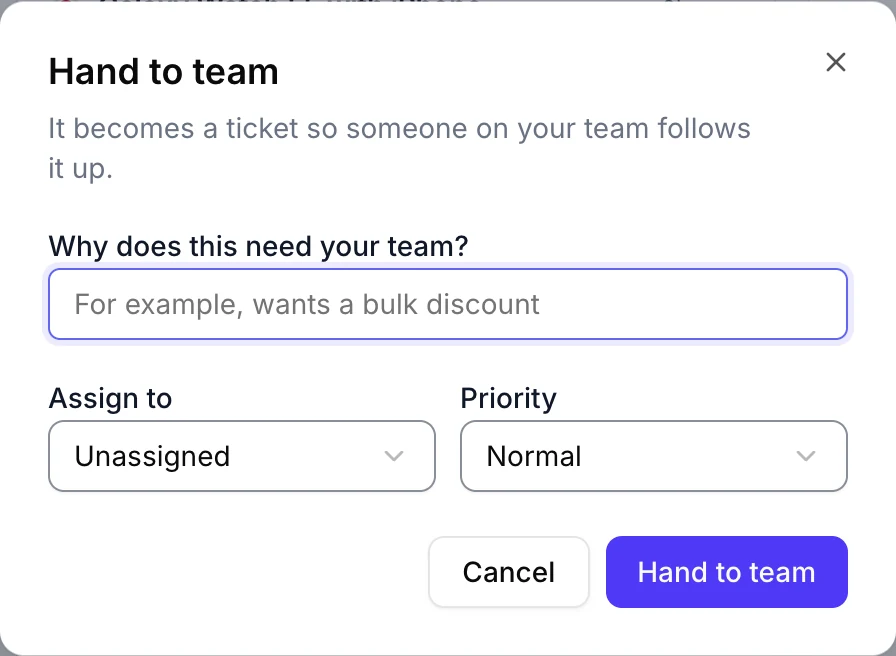
Select Hand to team in the chat header (in a narrow window it shows as an icon), add a reason, choose who to assign it to and the priority, then confirm. The chat becomes a ticket.
Resolve or reopen
Select Resolve when the chat is done. A resolved chat shows Reopen.
Good to know
- On Messenger, Instagram and WhatsApp you can only reply normally within 24 hours of the customer's last message. After that, on WhatsApp, select Send a template.