Conversation flows
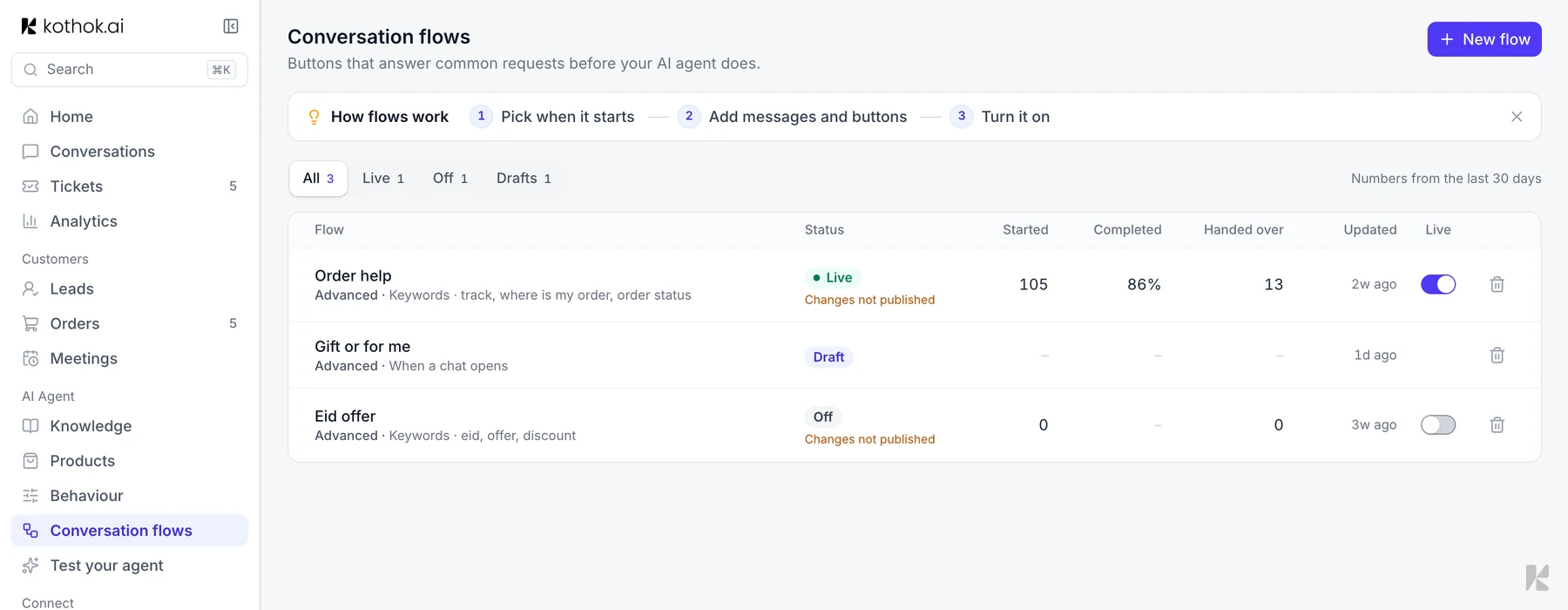
A conversation flow gives the same answer every time a request comes up, before your AI agent answers. For example, "pricing" can show buttons for your plans.
Who can do this: owners and admins. Members can view flows.
In the sidebar, under AI agent, select Conversation flows, then select New flow and choose Simple (an answer with follow-up questions to tap) or Advanced (buttons, questions and handover).
Simple flow or custom answer?
Both give a set answer, but they work differently:
- A simple flow replies word for word at any point in a chat and can offer follow-up questions. It works in your website chat only.
- A custom answer works on every channel, including Facebook and Instagram comments. It's sent word for word when a chat opens with that question; later in a chat, your agent uses it as knowledge. Add one under Knowledge.
If both match a message, the simple flow answers.
Build a simple flow
- Choose Simple, then select Continue.
- Under Customer asks, type the question the way a customer would ask it.
- Under Your agent replies, type the answer.
- Optionally, select Add a follow-up to show buttons under the answer.
- Select Save. The flow is live straight away.
Build an advanced flow
- Under Start from, pick Blank flow or a template, such as Talk to a person.
- Under When it starts, pick Home screen button, When a chat opens or When a message mentions your keywords.
- Select Add step and pick Message, Ask a question or Condition. For each button, choose what happens when it's tapped.
- Select Preview from here to try it, then Save and turn on.
While you edit a live flow, customers keep getting the published version until you select Publish changes.
If something goes wrong
"This clashes with another live flow." Change the trigger on one of them, or turn the other off.
My flow doesn't run on WhatsApp. Home screen button triggers and page rules only work on the website widget.